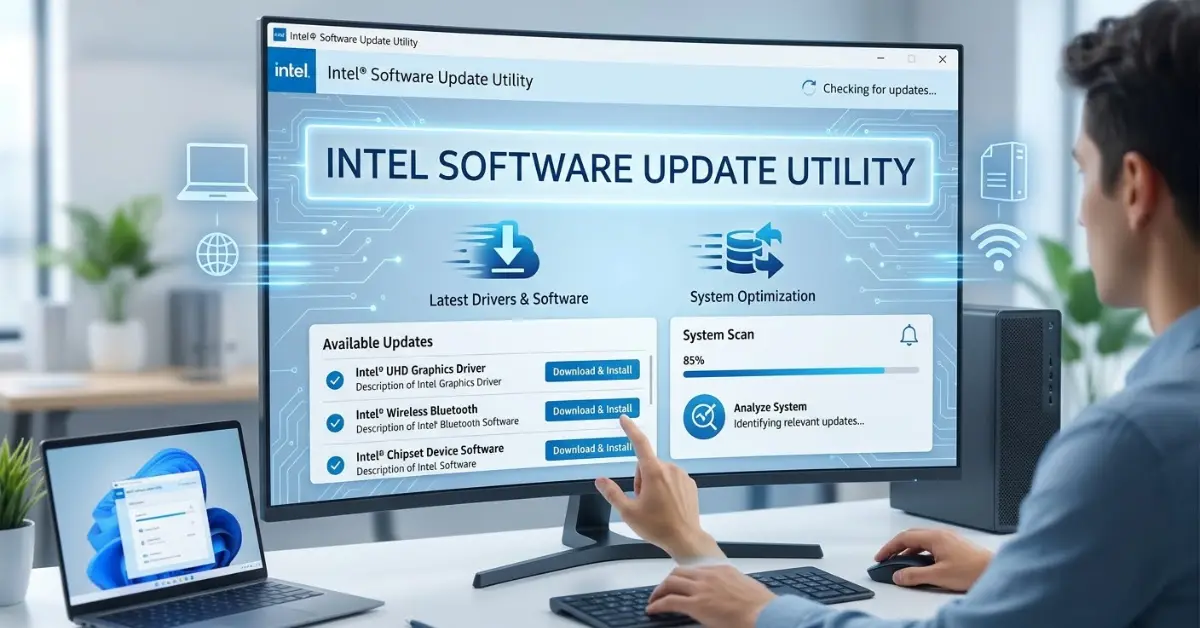
The Intel Software Update Utility, Helps users find the right Intel drivers and software updates for their computers. Keeping your drivers up to date can improve hardware performance, fix common problems, and help your PC work smoothly. Intel offers the Intel Driver & Support Assistant (Intel DSA) to scan supported hardware and show available updates. In this guide, you will learn how to download, install, and use this tool, check for driver updates, and fix common problems in simple steps.
What Can Intel Software Update Utility Do?
Intel Software Update Utility helps users find suitable updates for supported Intel hardware. Here are its main functions and benefits.
- Find Available Drivers: It checks supported Intel devices and shows available driver updates.
- Update Graphics Drivers: It helps users find suitable Intel graphics driver updates for supported hardware.
- Check Wireless Drivers: It can identify available updates for supported Intel Wi-Fi and network devices.
- Detect Intel Hardware: It scans your computer to identify supported Intel products.
- Show Update Details: It provides information about available updates so users can review them before installation.
- Save Time: It reduces the need to search for every supported Intel driver manually.
- Improve Compatibility: Suitable driver updates may help fix known issues and improve compatibility with Windows.
- Provide Official Resources: It directs users to relevant Intel driver downloads and support information.
Intel Software Update Utility makes it easier to find suitable driver updates and keep supported Intel hardware working properly.
Intel Software Update Utility vs. Intel Driver & Support Assistant
Intel Software Update Utility and Intel Driver & Support Assistant are related to finding Intel driver updates, but it is important to understand their differences.
| Feature | Intel Software Update Utility | Intel Driver & Support Assistant |
| Name | Common search term | Official Intel tool |
| Purpose | Refers to finding Intel software updates | Finds updates for supported Intel hardware |
| Hardware Detection | Depends on the tool | Scans supported Intel products |
| Driver Updates | Depends on the utility | Shows available driver updates |
| Safety | Verify the software source | Download from Intel’s official website |
| Best Use | Searching for update tools | Finding supported Intel driver updates |
Intel Driver & Support Assistant is the official tool to start with when checking for available updates for supported Intel hardware.
System Requirements Before Installing Intel DSA
Before installing Intel Driver & Support Assistant (DSA), make sure your computer meets the basic requirements.
- Operating System: Use a supported version of Windows.
- Internet Connection: Ensure you have a stable internet connection.
- Compatible Hardware: Check whether your Intel device is supported.
- Web Browser: Use an up to date browser to view scan results.
- Administrator Access: Make sure you can install software on your computer.
Checking these requirements first helps ensure a smoother installation and update process.
How to Download Intel Software Update Utility
Follow these simple steps to download Intel Driver & Support Assistant (DSA) from the official Intel website.
- Visit the official Intel DSA website
- Find the download option on the page.
- Click the download button to get the installer.
- Wait for the download to finish.
- Open your Downloads folder and locate the installer.
Always download Intel DSA from Intel’s official website to avoid unsafe or unofficial software.
How to Install Intel Driver & Support Assistant
Follow these easy steps to install Intel Driver & Support Assistant (DSA) on your computer.
- Open your Downloads folder and find the Intel DSA installer.
- Double click the downloaded setup file.
- Allow the installer to run if Windows asks for permission.
- Read and accept the required terms.
- Follow the on screen instructions to complete the installation.
- Open Intel DSA and follow the instructions to check for available driver updates.
Once installed, Intel DSA can help you find available updates for supported Intel hardware.
Common Intel Software Update Utility Problems and Fixes
Users may face different issues when checking or installing Intel driver updates. This table explains common problems and their possible solutions.
| Common Problem | Solution |
| Intel DSA does not detect hardware | Check whether your Intel device is supported. |
| Scan does not work | Check your internet connection and restart your browser. |
| Installation fails | Run the installer again with the required permissions. |
| Driver update fails | Restart your PC and try installing the driver again. |
| No updates are available | Check Intel’s website or your computer manufacturer’s support page. |
| Intel DSA page does not open | Check your connection and try another updated browser. |
| PC works slowly after an update | Check the driver and roll it back if necessary. |
These simple fixes can help you troubleshoot common Intel driver update problems and keep your computer running smoothly.
Common FAQs About Intel Software Update Utility
Here are Some Faqs of Intel Software Update Utility:
Does Intel Software Update Utility Update BIOS Automatically?
No, Intel Driver & Support Assistant does not automatically update every computer’s BIOS. BIOS updates should be obtained from the computer or motherboard manufacturer’s official website.
Can I Use Intel Software Update Utility on a Laptop?
Yes, you can use Intel Driver & Support Assistant on a compatible laptop to check for available updates for supported Intel hardware.
Do I Need to Create an Intel Account to Use Intel DSA?
An Intel account is generally not required for basic driver scanning, but some Intel support services may have separate requirements.
Can Intel Software Update Utility Fix Driver Errors?
It may help you find newer drivers that address known issues, but it cannot guarantee that every driver error will be fixed.
What Should I Do If a New Driver Causes Problems?
You can try rolling back the driver through Windows Device Manager or reinstalling a stable driver recommended by your computer manufacturer.
Does Intel DSA Work Without an Internet Connection?
No, an internet connection is needed to check Intel’s online update information and download available drivers.
Can I Use Intel DSA on a Computer With an AMD Processor?
Yes, potentially. Some computers with AMD processors may include supported Intel devices, such as Intel wireless adapters. Update availability depends on the hardware detected.
How Can I Check Which Intel Driver Is Installed on My PC?
Open Device Manager, select the relevant hardware category, right-click the Intel device, choose Properties, and check the Driver tab for its version and date.
Conclusion
Intel Software Update Utility is a useful search term for users who want to find and manage Intel driver updates. Intel Driver & Support Assistant helps identify supported Intel hardware and shows available driver updates. By downloading drivers from official sources, checking hardware compatibility and following the correct installation steps, you can help keep your computer running smoothly. Remember to use Windows Update for regular system updates and your computer manufacturer’s website when specific drivers are needed.