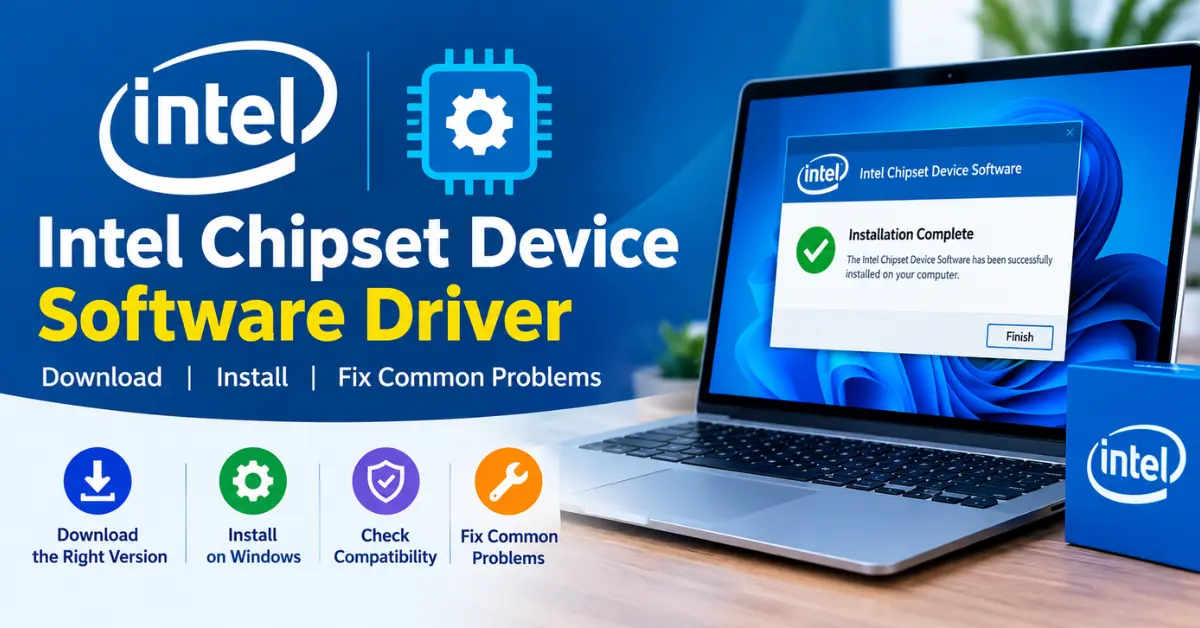
The Intel Chipset Device Software Driver, Helps Windows identify important components on your computer’s motherboard. It provides information that allows Windows to recognize chipset hardware by the correct names. This software can be useful when setting up a new computer or installing Windows again. You will learn what Intel Chipset Device Software does, how to download and install it, and how to fix common installation problems in simple steps.
What Is Intel Chipset Device Software?
Intel Chipset Device Software is a software package designed to help the Windows operating system recognize Intel chipset components. It contains information files, often called INF files, that tell Windows how to identify certain hardware devices. This helps your computer show the correct device names in Device Manager instead of listing them as unknown devices. It is important to know that this software does not include every driver needed for your computer’s graphics, sound, Wi-Fi, or Bluetooth.
What Does the Intel Chipset Software Do?
Intel Chipset Software helps Windows recognize important components on your computer’s motherboard. Here are its main functions:
- Identifies Hardware: Helps Windows recognize chipset components by their correct names.
- Provides Device Information: Supplies information Windows uses to identify certain hardware devices.
- Reduces Unknown Devices: Can help Windows display proper names instead of unknown device labels in Device Manager.
- Supports Windows Setup: Can be useful after installing Windows on a computer with an Intel chipset.
- Helps with Hardware Management: Makes it easier to identify chipset components when checking your computer’s hardware.
- Works with Other Drivers: Helps identify hardware but does not replace separate graphics, audio, Wi-Fi, or Bluetooth drivers.
Intel Chipset Software helps Windows identify chipset components correctly, making hardware information easier to understand and manage.
Signs You May Need Intel Chipset Device Software
Some signs may show that Windows is not identifying your computer’s chipset components correctly. Here are a few things to check:
- Unknown Devices: You may see devices with unclear names in Windows Device Manager.
- Yellow Warning Symbols: A yellow warning sign may appear beside a device that has a driver or hardware issue.
- Incorrect Device Names: Windows may display a generic name instead of the correct chipset component name.
- Fresh Windows Installation: You may need the software after installing Windows on a computer with an Intel chipset.
- Missing Chipset Information: Some chipset components may not appear with the expected names in Device Manager.
- Hardware Identification Issues: You may have difficulty identifying certain motherboard components when checking your system.
If you notice these signs, check your device information and computer manufacturer’s support page to determine whether Intel Chipset Device Software is needed.
Check Your Computer Before Downloading
Before downloading the Intel Chipset Device Software Driver, check a few details about your computer to make sure you choose the correct software.
- Check Your Computer Model: Find your laptop or desktop model name. You can usually find it in Windows System Information or on your computer’s label.
- Check Your Windows Version: Open Settings and go to System, then About, to see whether you are using Windows 10 or Windows 11.
- Identify Your Intel Chipset: Check your computer or motherboard manufacturer’s website to find the supported chipset information.
- Visit the Official Support Page: Open your computer manufacturer’s website to look for chipset software recommended for your specific model.
- Review System Compatibility: Read the download page carefully to confirm that the software supports your Windows version and hardware.
- Check the Release Information: Review the software version and release notes to understand its purpose and any important installation details.
Checking these details before downloading helps you choose compatible software and avoid installing an incorrect package on your computer.
How to Download Intel Chipset Device Software Driver
You can download the Intel Chipset Device Software Driver by following these simple steps to find the correct software for your computer.
- Visit the Official Intel Website: Open the Intel Download Center to find chipset software.
- Search for the Chipset Utility: Search for “Intel Chipset Device Software” or “Intel Chipset INF Utility” on the website.
- Open the Download Page: Select the relevant software result to view its details and available files.
- Check Compatibility: Read the supported operating systems, release notes, and installation requirements before downloading.
- Download the File: Click the download link for the appropriate package and save the file to your computer.
- Use Your Manufacturer’s Website if Needed: If Intel does not list a suitable package for your system, check your laptop or motherboard manufacturer’s official support page.
Always download the Intel Chipset Device Software Driver from Intel or your computer manufacturer’s official website to get a suitable and trustworthy package.
How to Install Intel Chipset Device Software on Windows
After downloading the correct Intel Chipset Device Software package, follow these simple steps to install it on your Windows computer.
- Find the Downloaded File: Open your Downloads folder and locate the Intel Chipset Device Software installer.
- Check the File: Make sure you downloaded the software from Intel’s official website or your computer manufacturer’s support page.
- Run the Installer: Double click the downloaded file. If Windows asks for permission, confirm only if you trust the file.
- Follow the Instructions: Read the setup instructions and accept the license terms if you agree.
- Complete the Installation: Allow the installer to finish its work. Do not close it while the installation is running.
- Restart Your Computer: Restart Windows if the installer asks you to do so.
- Check the Result: Open Device Manager and check whether the relevant chipset components are identified correctly.
Installing the correct package and following the setup instructions can help Windows identify supported chipset components properly.
Common Intel Chipset Software Problems and Their Fixes
Intel Chipset Software problems can happen during installation or hardware detection. Here are some common issues and their fixes.
| Problem | Solution |
| Installation Failed | Download a compatible package. |
| Unknown Device | Check Device Manager and install the correct driver. |
| Yellow Warning Symbol | Check the device error message. |
| Installer Won’t Open | Download the file again from an official source. |
| Problem Still Exists | Check your computer manufacturer’s support page. |
Check compatibility and use official downloads to troubleshoot chipset software problems.
Common FAQs About Intel Chipset Device Software Driver
Here are Some Faqs of Intel Chipset Device Software Driver:
Is Intel Chipset Device Software compatible with all computers?
No, compatibility depends on your computer’s chipset, hardware, and supported operating system.
Can I use Intel Chipset Device Software on a computer with an AMD processor?
Intel Chipset Device Software is intended for supported Intel chipset platforms, not AMD chipset systems.
Does Intel Chipset Device Software work without an internet connection?
Yes, you can generally install a previously downloaded installer offline if it contains the required files.
Can I keep an older version of Intel Chipset Device Software?
You may be able to, but using the version recommended by Intel or your computer manufacturer is usually best.
Does Intel Chipset Device Software collect personal information?
Its main purpose is hardware identification, but you should review the applicable privacy information for any associated Intel software or services.
Can I install Intel Chipset Device Software after a Windows update?
Yes, if your system needs it and the package supports your hardware and Windows version.
Is Intel Chipset Device Software required for gaming?
It is not a gaming application, but correct chipset identification and suitable system drivers can help Windows manage supported hardware properly.
Where can I find help if Intel Chipset Device Software does not work?
You can visit the Intel Support website or contact your computer manufacturer’s support team for help.
Conclusion
The Intel Chipset Device Software Driver helps Windows identify important chipset components and display their correct names. Choosing the right software for your computer can make hardware identification easier and help you manage your system properly. Always download the recommended package from Intel or your computer manufacturer’s official website. By following the correct installation steps and checking compatibility, you can avoid common problems and keep your Windows system working smoothly.